With the import tool, you can easily import companies, people, and coworkers from external sources into Lime Go.
❔ How do I do it?
You'll find the import tool in two places:
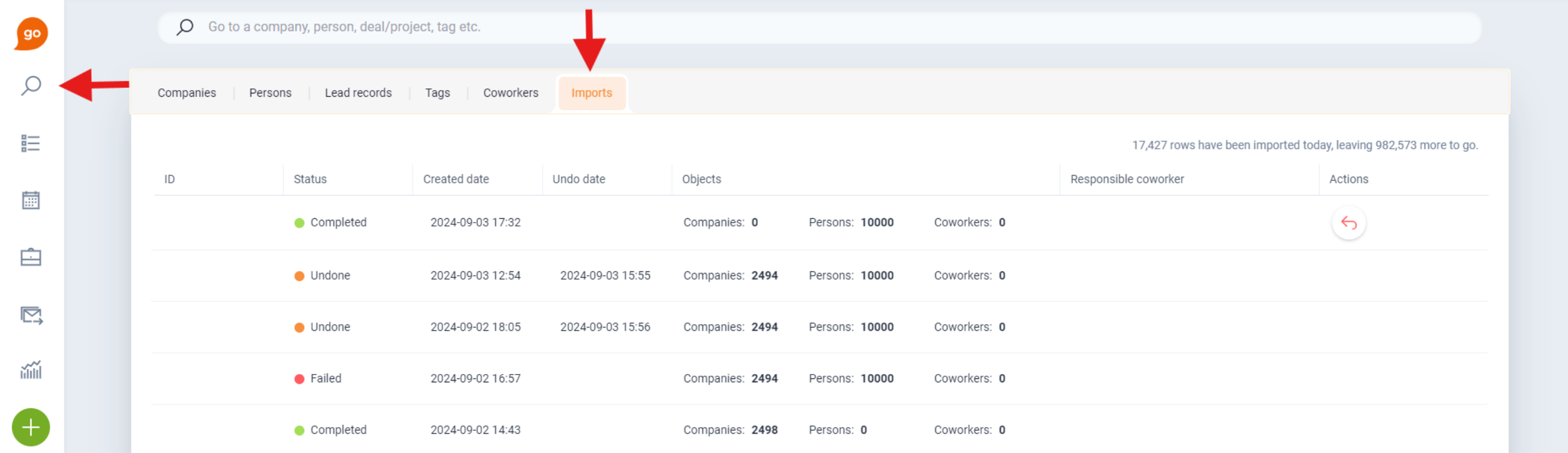
- Under Find in the menu on the left – click New Import.
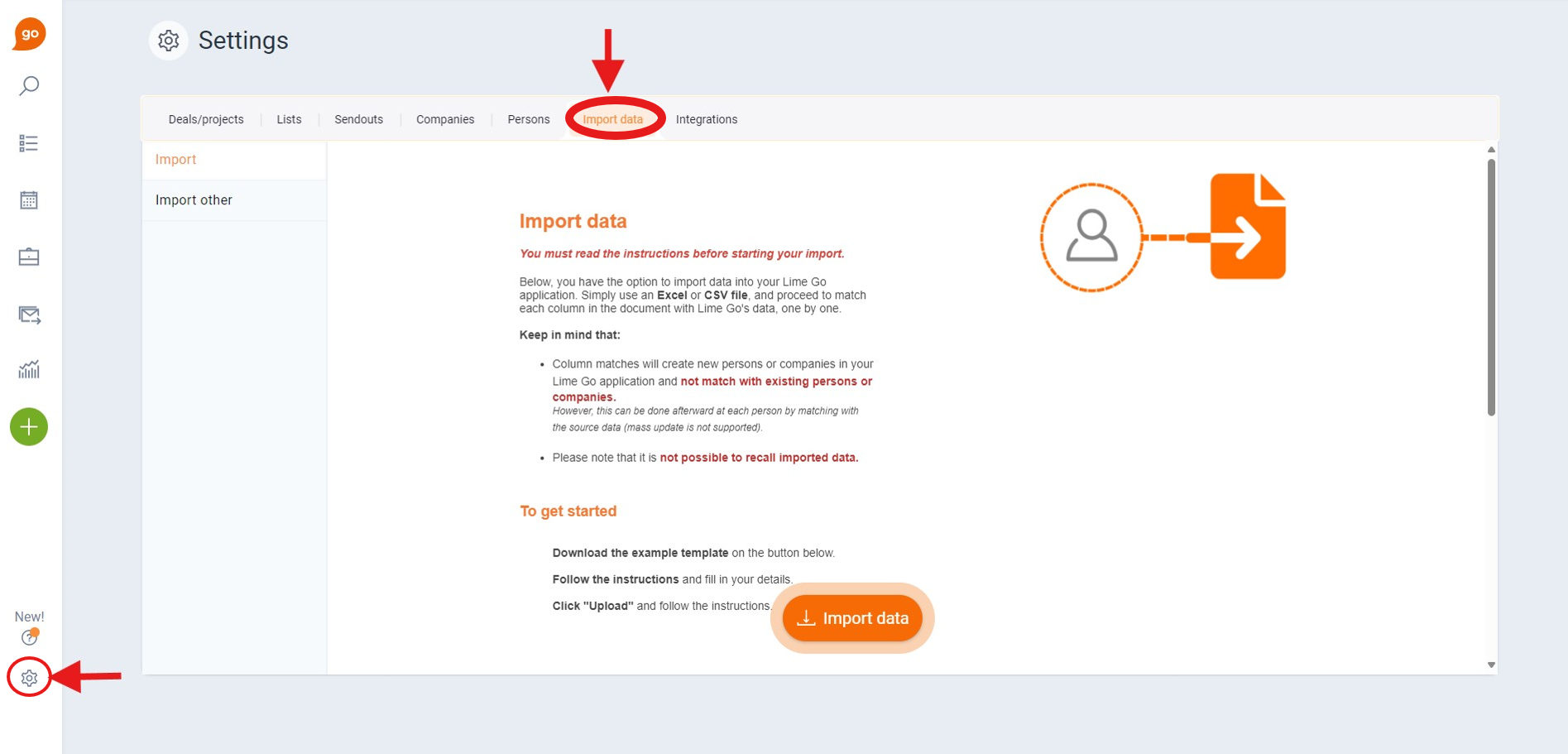
- Under Settings and then Import Data.
You need administrator permissions to create new imports or undo existing ones. However, you can view the import history without administrator permissions.
Step 1: Prepare your files
Download our Excel templates here. Create one Excel sheet (.xlsx or .csv) per data type you want to import – companies, people, and/or coworkers. The sheets can be in the same file or separate files.
Step 2: Upload the file
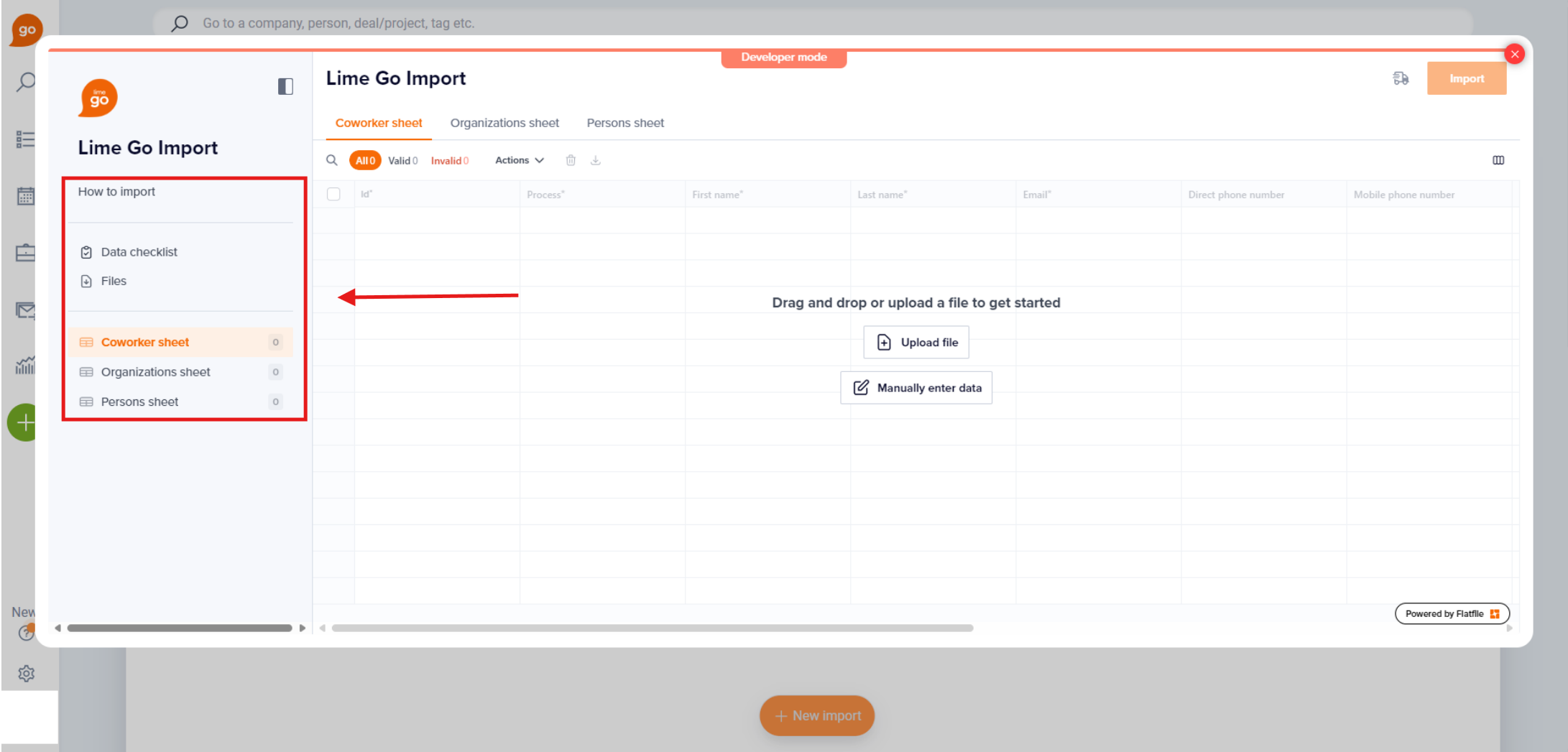
Open the import tool and upload your file in the popup window.
Step 3: Select sheet
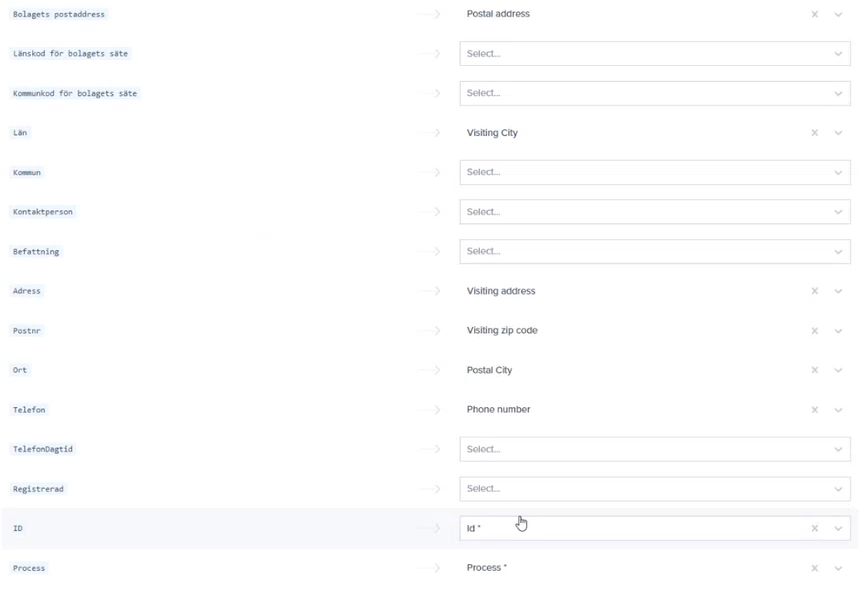
If you're using a file with multiple sheets, click Import and select Select sheet. Choose the sheet from your file on the left and link it to the correct data type on the right. Click Continue.
The system now runs a background match against existing data in the database. This can take up to 10 minutes. The Matched column shows Yes or No for each row.
Step 4: Review and import
Check the accepted values and manually set values for rows missing data. Then click Import.
Your import is listed as the first entry in the import table. Follow the status to see when it's completed. Imported objects are tagged with an ID you can use as a filter to find them. Read more about the import table here.