Select two or more companies in our merge feature to combine their data into one company card!
How do I do it?
Step one in a merge is that you get to select the companies to be included in the merge.
- Start by making sure the correct company is selected as master
- Change the master if needed.
How do I do that?
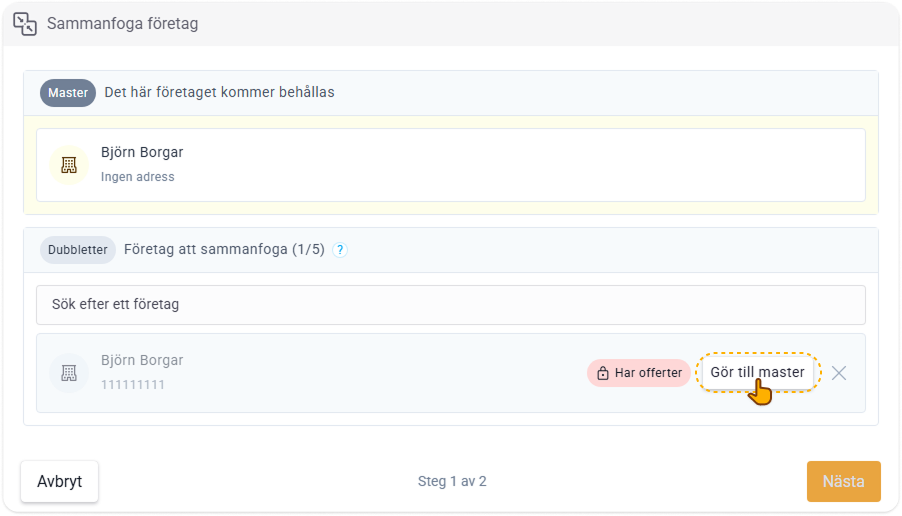
What is a master?
- Then add all duplicates to the list below the master
Only 5 duplicates can be added to a merge.
How do I do that?
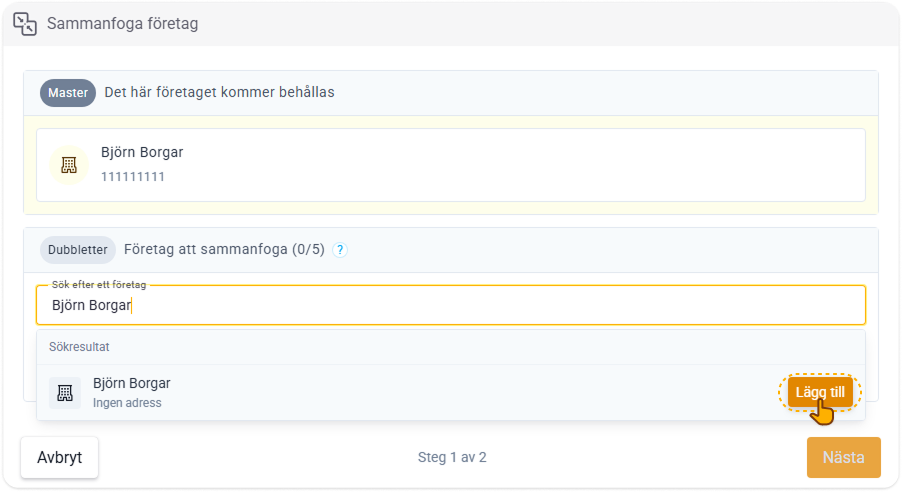
What is a duplicate?
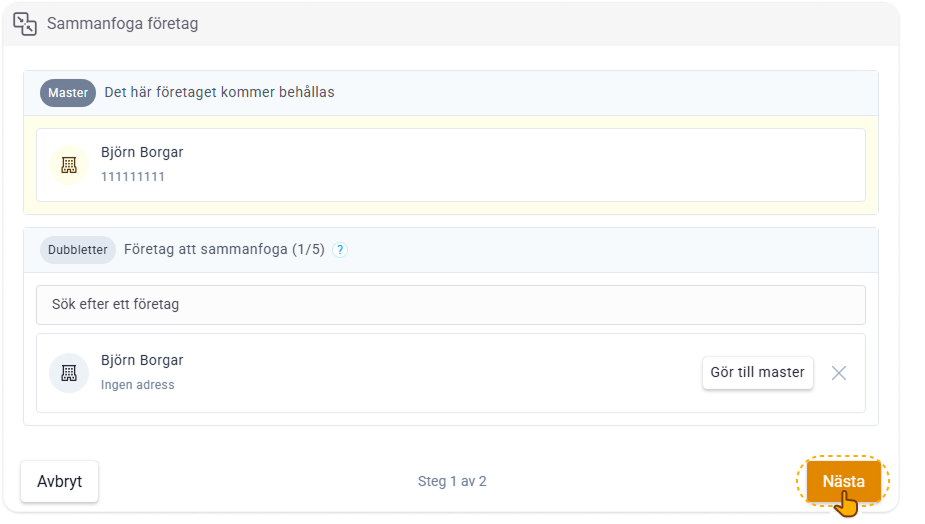
- Once all companies have been selected and the master and duplicates are correct, proceed via the Next button.
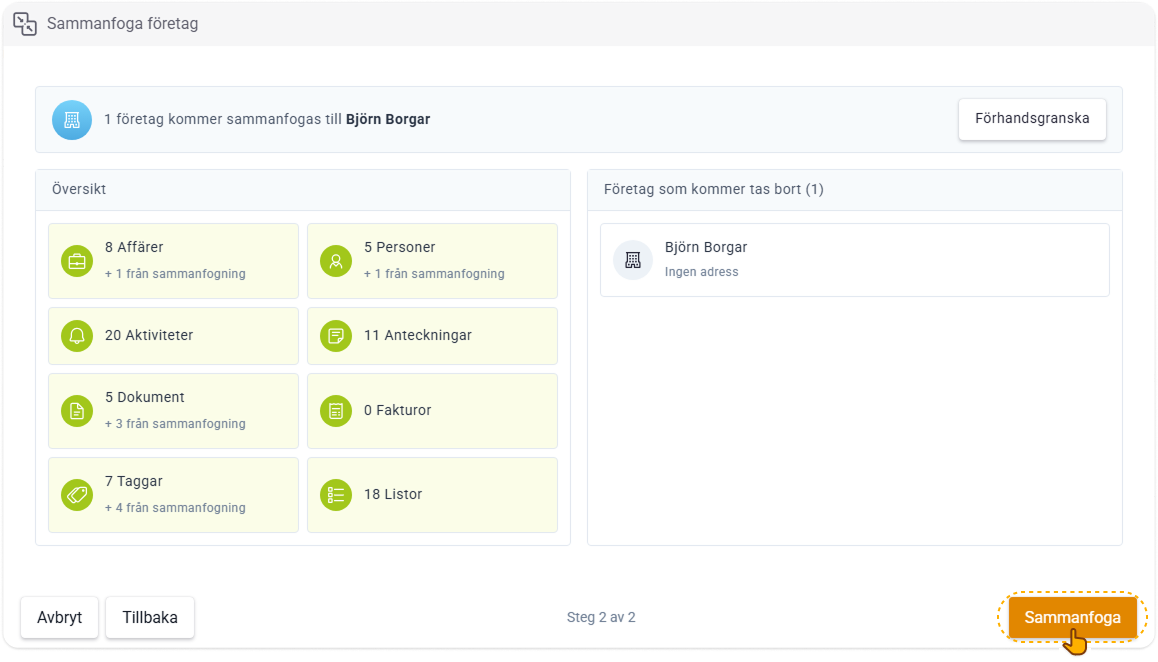
Step two in the merge process is that you get to review what the merged company will look like.
- Start by reviewing all the fields the merged card will have by clicking the Preview button.
- Then review that everything carries over in the merge under Overview.
- Also double-check all duplicates that will be removed after the merge under Companies to be removed.
- When you feel ready, and all information is correct, you can proceed by clicking the Merge button.
- You will then receive a notification that the merge has started. You can work freely in the system in the meantime.
- When the merge is complete, you'll get a notification you can click to go to the new merged card.