You create new tags under Application Settings on either the company, deal, or person category, or on a card.
How do I do it?
You can create new tags in two different ways. Either via Application Settings or via a card.
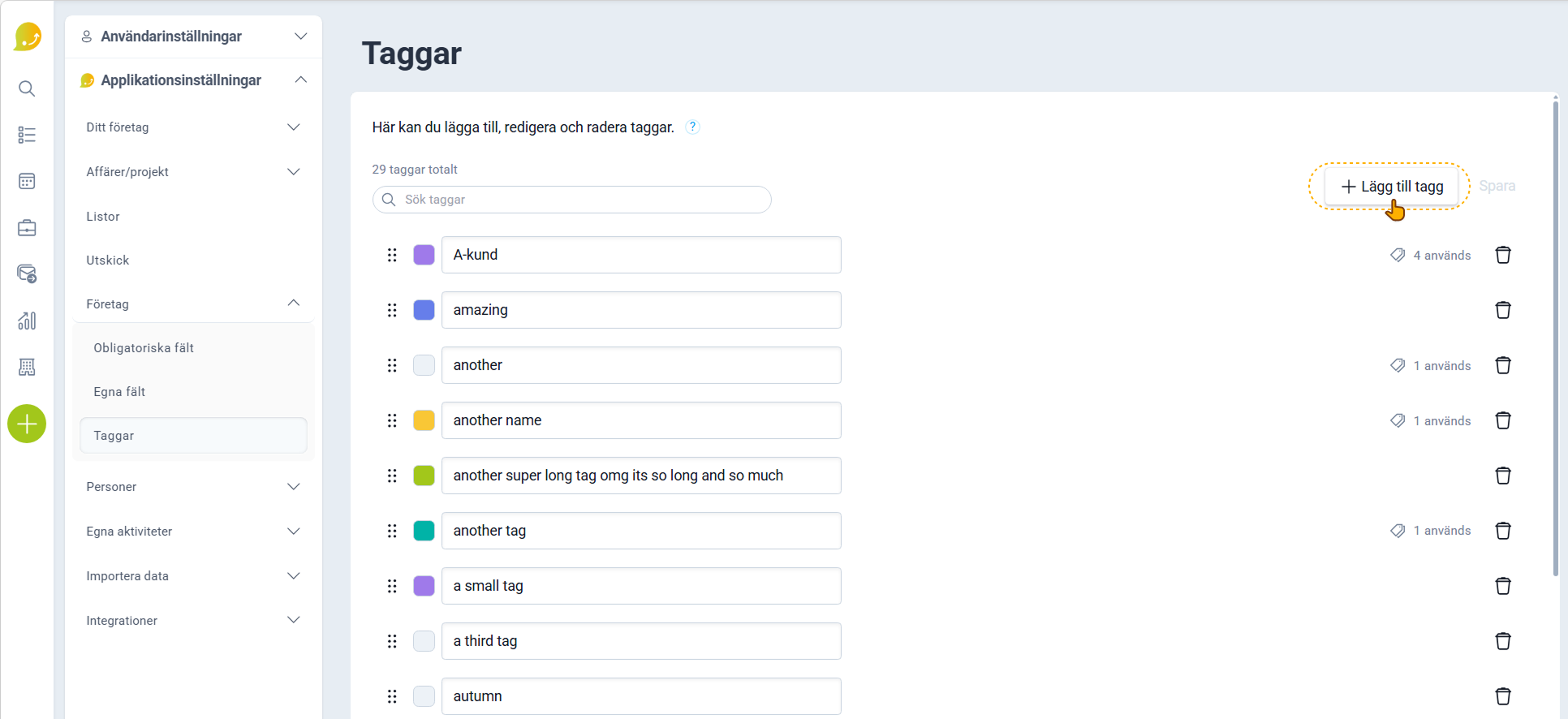
Create a new tag under Application Settings:
- Navigate to Tags under Application Settings
How do I do that?
- To add a new tag, click +Add tag
- A new field will then appear at the top of the tag list, where you can enter a name and add a color to the new tag
- Don't forget to click Save when you're done, in the top right corner
Create a new tag on a card:
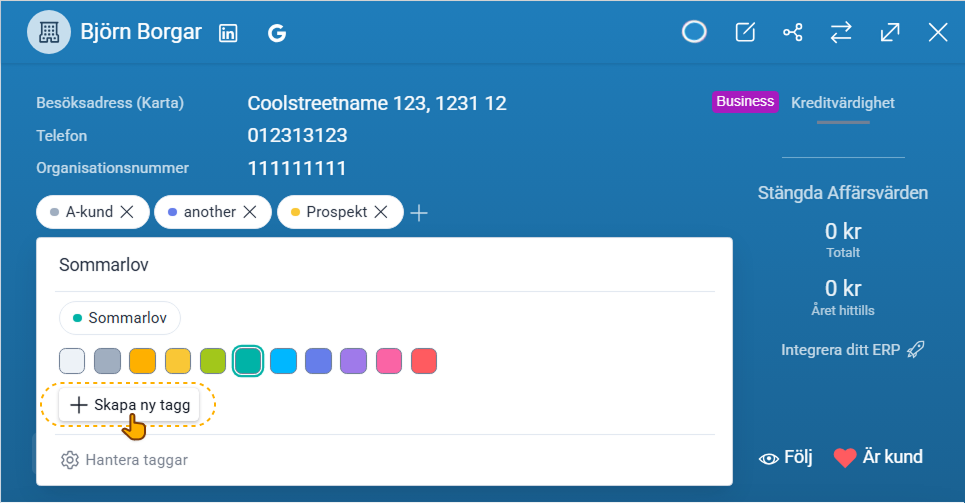
- Navigate to the card you want to add a tag to
- In the card's main area, click +Add tags or the plus button next to tags if there are already tags on the card
Optional: You can also choose a color for a tag by clicking the color box and selecting your color.
- Enter the name of the new tag you want to create
- Click +Create new tag
Only administrators can create new tags