
If needed, you can get a file with all the information entered into your Lime Go application. Here are the steps to convert the XML file to Excel.
❔ How do I do it?
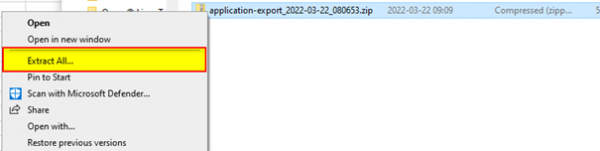
Download the file, save it locally, and extract the zip file.
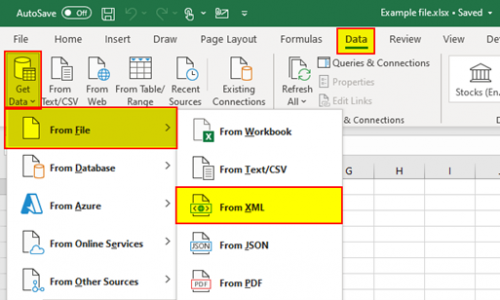
Open a blank Excel sheet and go to the Data tab.
Click Get Data, then From File and select From XML.
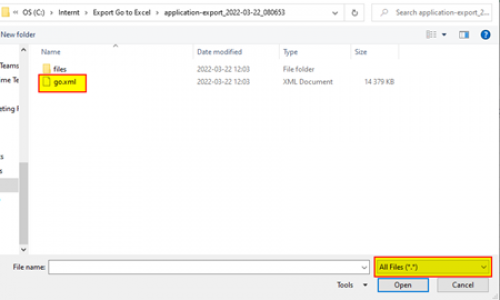
Find and open the file go.xml from the extracted zip file. Make sure all file types are shown.
Click Transform Data and wait while the data is processed.
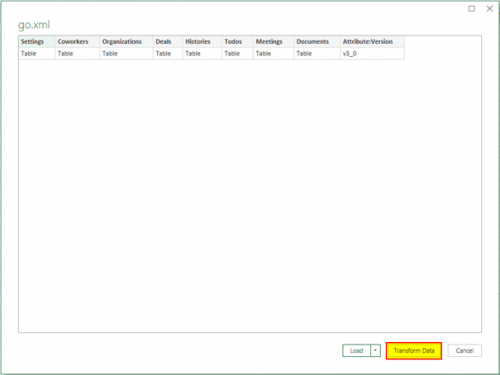
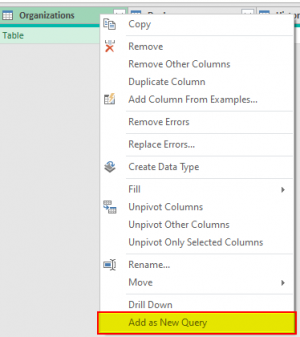
Wait while the data is processed. You can now see all the tables, see the "Organizations" table marked below. We now want to separate the tables into separate queries.

Right-click the table you want to work with and select Add as New Query.
Click Table and then the expand button to show all fields.
Select the data you want to bring in – generally all data.
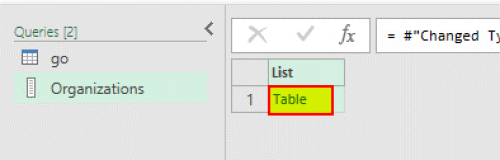
The next step is to expand the table to show all the fields it contains.
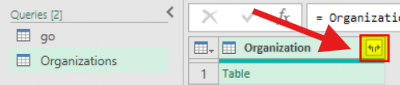
Click the expand button marked below.
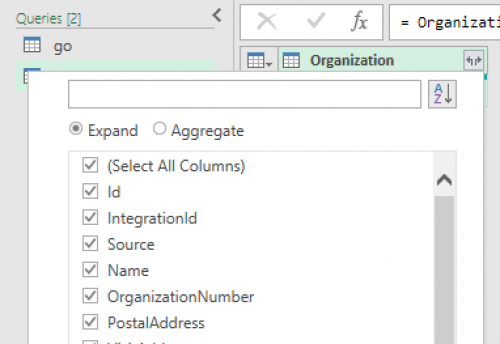
Go through each column and expand tables where needed.
Relation fields only need to show the ID of the relation. For example, you only need the company ID on the deal table – the name already exists in the company table.

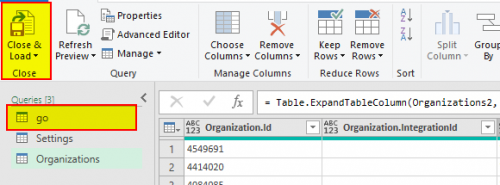
Repeat steps 6–9 for each table. When you're done, click Close and load.
Need help with the conversion? Contact support via chat to book a Lime consultant.