
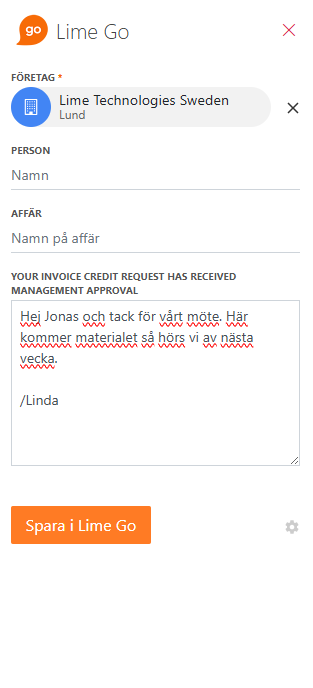
With the Lime Go Outlook add-in, you can save important emails and attachments directly to Lime Go from Outlook. The saved email must be linked to a company, but can also be linked to a person and a deal.
❔ How do I activate the add-in in old Outlook?
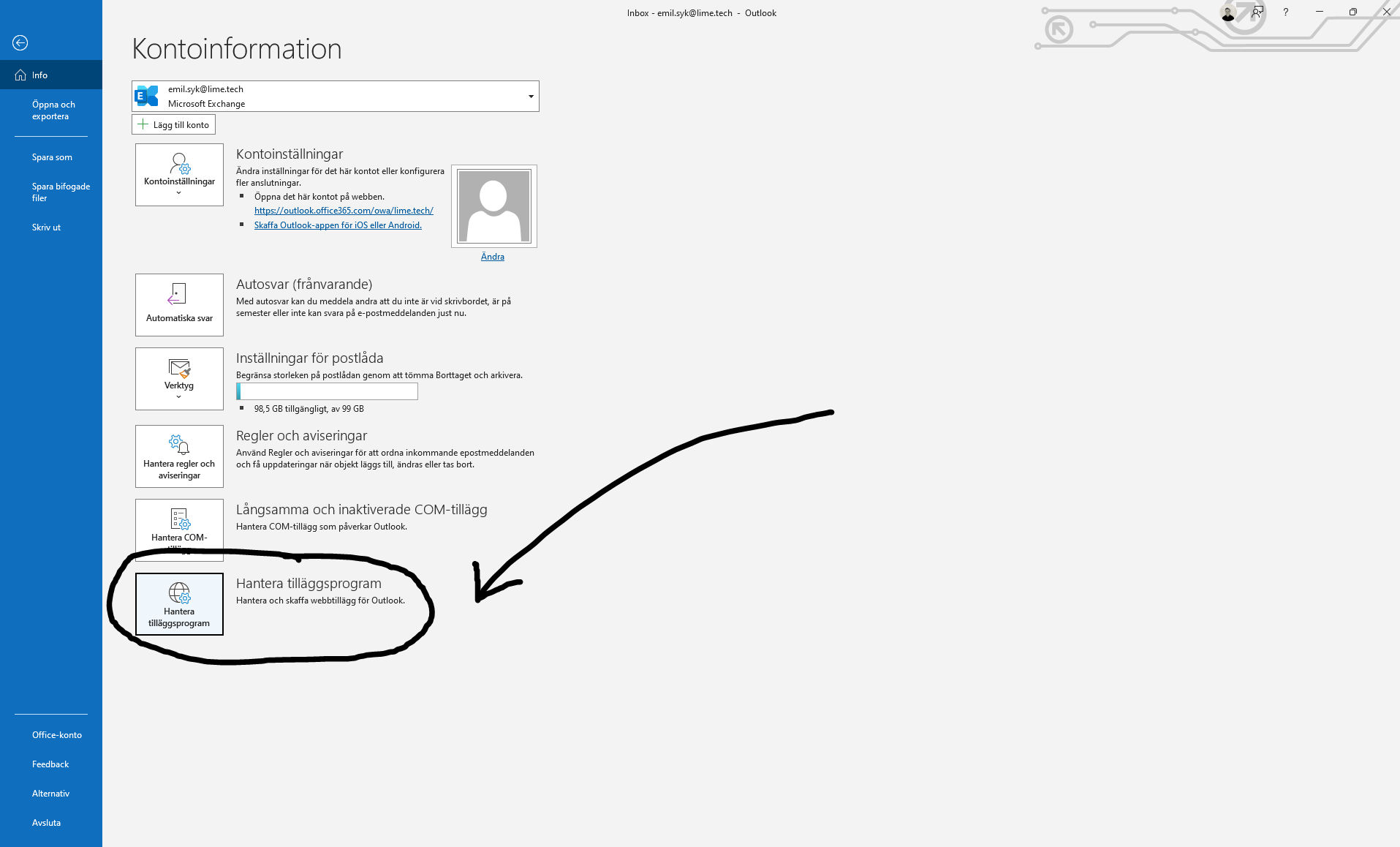
- Open Outlook and go to the Home tab.
- Click Manage Add-ins at the bottom.
- Search for Lime Go and click Add.
- Restart Outlook.
- Click Save to Lime Go in the top right corner.
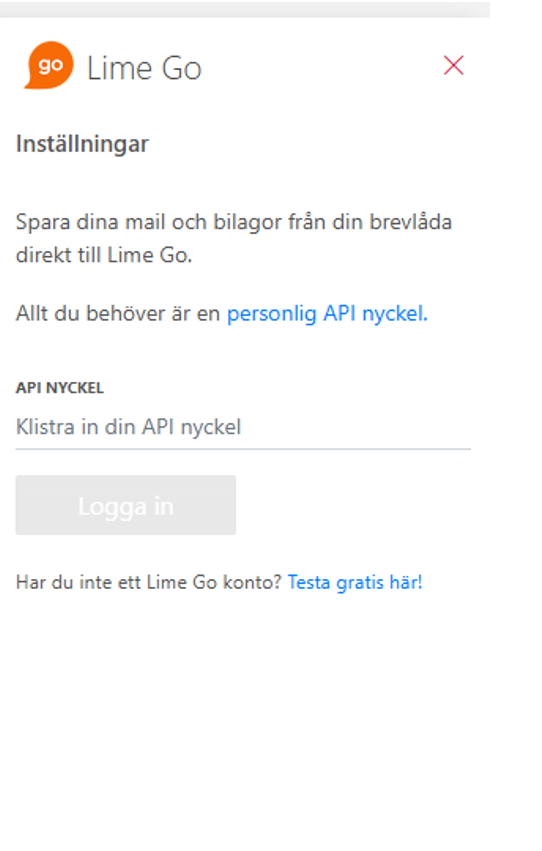
- Add your personal API key and log in.
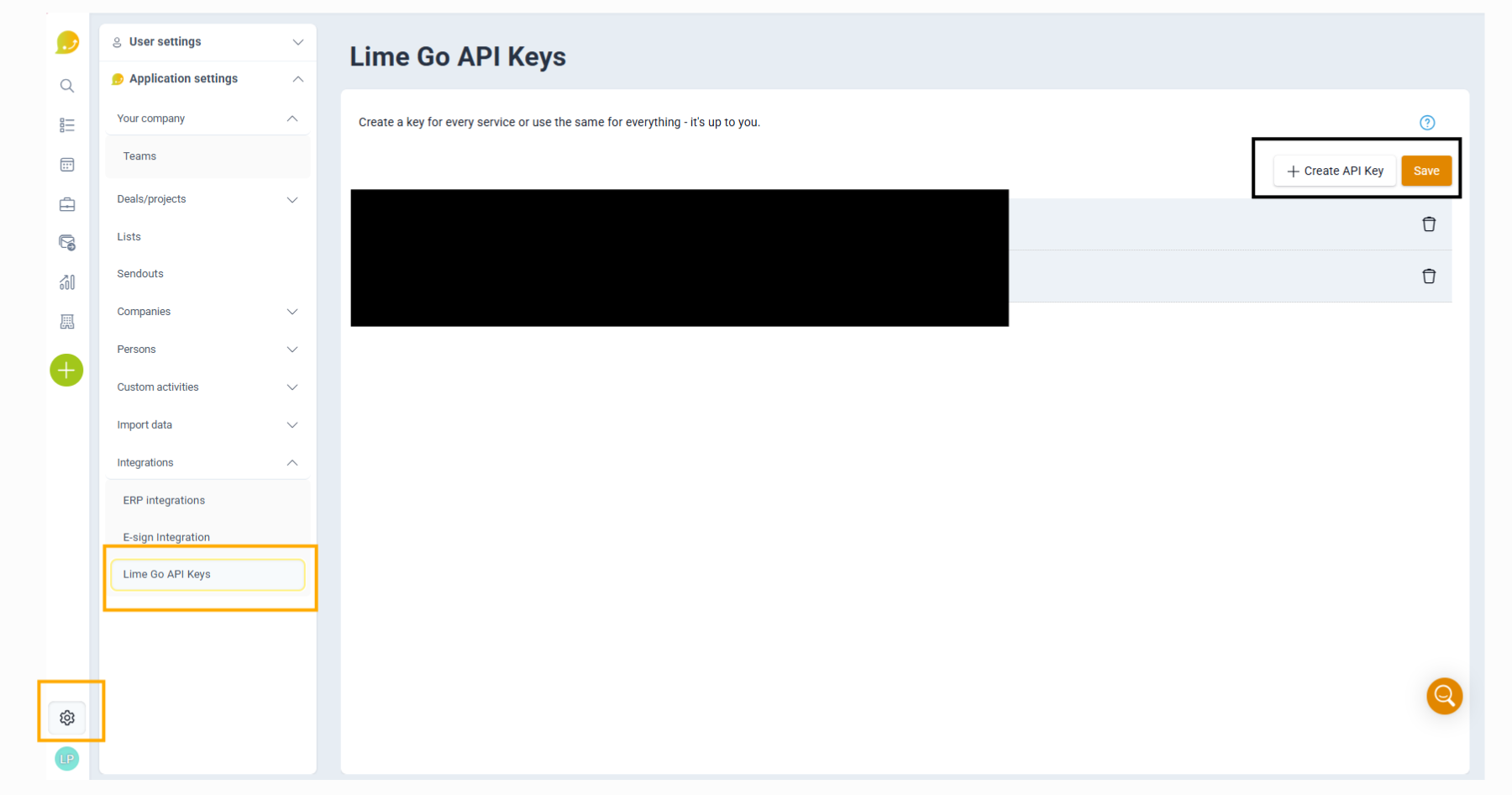
Create a personal API key
- Click your settings (the ⚙️ gear icon) and click Application Settings and Lime Go API keys
- Click + Add.
💡 API keys are personal and should be treated like a password.
❔ How do I activate the add-in in new Outlook
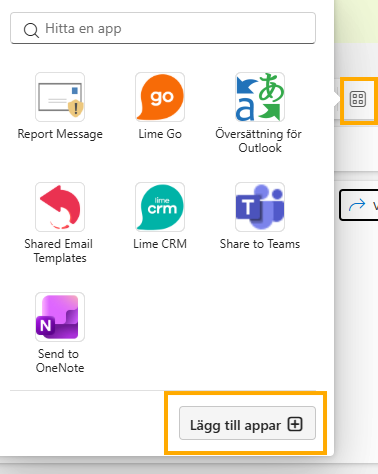
- Open Outlook and click Add apps in the menu.
- Search for Lime Go and click Lime Go Mail Add-in.
- Click Add.
Where do I find the add-in after installation?
- Open an email.
- Click Apps.
- Select Lime Go.
The first time you open the add-in, you may be asked to enter an API key. See the instructions for how to create one in the section above.
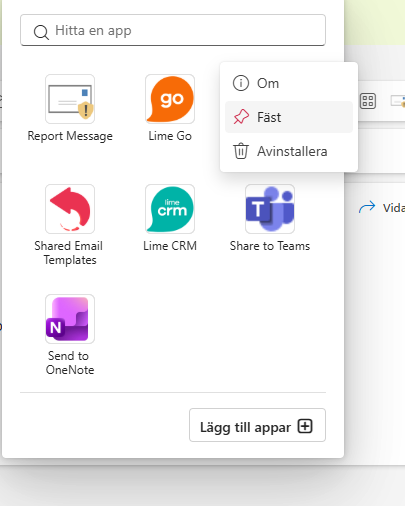
Pin the add-in so it's always visible
- Open an email and click Apps or More apps.
- Right-click Lime Go.
- Select Pin.
How does the add-in work?
When the add-in opens, Lime Go tries to match the email to a person based on the sender's email address.
If no person is found, it searches for the company via the email domain. If no match is found, you can search manually or add a new company or a new person directly in the add-in.
Can't find Lime Go in Outlook? Either your IT administrator needs to install the add-in centrally, or your organization has disabled add-ins. Contact your IT support for help.